
Download Backup to Email – Secure File Backup, Free Email‑Based Storage, Easy Windows Tool
Overview
Backup to Email is a lightweight Windows utility that turns any mailbox into a virtual backup drive. Instead of relying on external USB sticks, cloud services, or expensive subscription‑based storage, this tool lets you send files directly to your own email address. Because the files are stored as regular email attachments, they inherit the same security measures that protect your inbox – a strong password, two‑factor authentication, and encrypted connections (TLS/SSL).
The program integrates seamlessly into Windows Explorer, adding a “Backup to Email” entry to the context menu. With a single right‑click, you can ship a document, spreadsheet, or photo to your inbox, where it remains instantly accessible from any web browser, laptop, or mobile device. If a file exceeds the typical 10 MB attachment limit, Backup to Email automatically splits it into smaller parts and supplies a built‑in merging utility for effortless restoration.
The solution is especially handy for users who need an “always‑on” backup that is both portable and free of third‑party storage fees. Its minimalistic interface requires only your email credentials and a few optional preferences, making the learning curve virtually nonexistent. Whether you’re a freelance writer protecting drafts, a small‑business owner safeguarding invoices, or a student keeping lecture notes handy, Backup to Email offers a quick, secure, and cost‑free method to keep critical data within arm’s reach.
Key Features
- Direct mailbox storage – files become regular email attachments, protected by your existing email password.
- One‑click Explorer integration – a new context‑menu entry lets you back up files without leaving Windows Explorer.
- Automatic file splitting – attachments larger than 10 MB are divided into manageable parts to bypass common email limits.
- Built‑in merging tool – restores split files to their original size with a single click.
- Cross‑device accessibility – retrieve your backups from any web browser, tablet, or smartphone that can access your email.
- Zero‑cost operation – the software itself is free, and you only use the storage already allocated to your email account.
- Secure connection – supports SSL/TLS encryption for both sending and receiving attachments.
- Customizable file naming – prepend dates, tags, or project names automatically when backing up.
- Lightweight footprint – the installer is under 2 MB and consumes negligible system resources.
- Automatic update checks – keeps the program current without manual downloads.
These features combine to make Backup to Email a uniquely convenient solution for anyone who already relies on email for daily communication. By leveraging the ubiquitous nature of email, the tool eliminates the need for additional cloud accounts or physical media while still delivering reliable, on‑demand access to backed‑up files. The automatic splitting and merging utilities are particularly valuable for users who routinely handle large media files, presentations, or database extracts that would otherwise be rejected by standard mail servers. Moreover, the integration with Windows Explorer means the backup process fits naturally into existing workflows, reducing the temptation to skip regular data protection.
Installation & Usage Guide
Step‑by‑Step Installation
1. Download the installer from the official website – the file is named BackupToEmailSetup.exe and is less than 2 MB in size.
2. Run the executable with administrator privileges.
The installer will guide you through a typical wizard, prompting for the destination folder (default: C:\Program Files\BackupToEmail) and whether you want a desktop shortcut.
3. Accept the license agreement and click “Install.” The process usually completes within a minute.
4. Launch the application after installation.
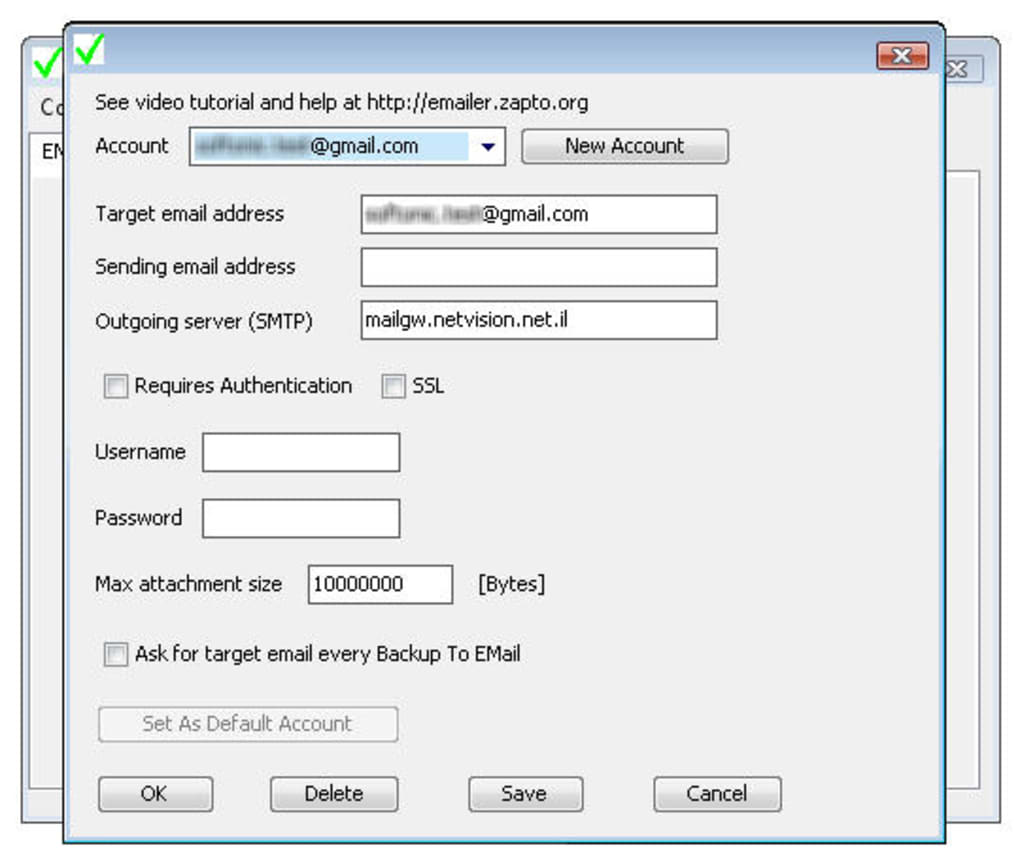
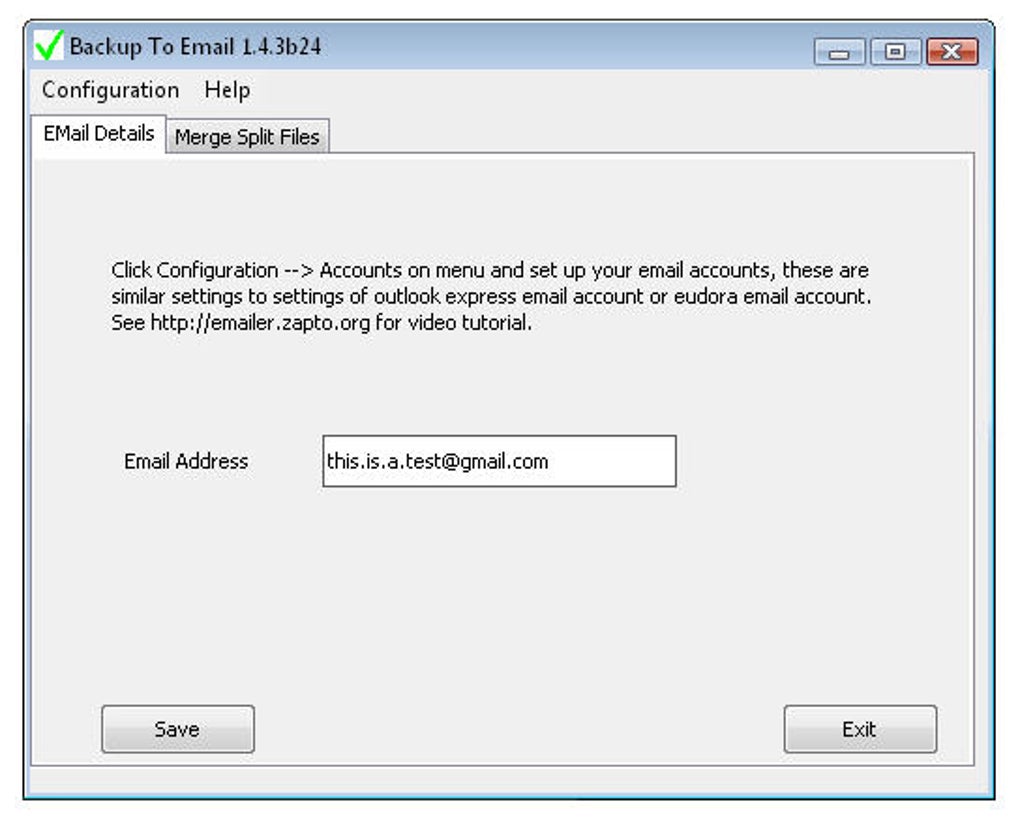
The first‑time startup window asks for your email address, password (or app‑specific password if you use two‑factor authentication), and the SMTP/IMAP server details. Most major providers (Gmail, Outlook.com, Yahoo) are pre‑filled; you can also manually enter custom server information for corporate or self‑hosted mail solutions.
5. Test the connection using the “Check Settings” button.
If the test succeeds, click “Save” to store the configuration securely in the Windows Credential Manager.
Backing Up Files
Once configured, Backup to Email adds a new entry titled “Backup to Email” to the right‑click context menu in Windows Explorer. To back up a file, simply locate it, right‑click, and choose the new option. A small dialog appears, allowing you to add an optional note or tag that will be appended to the email subject line.
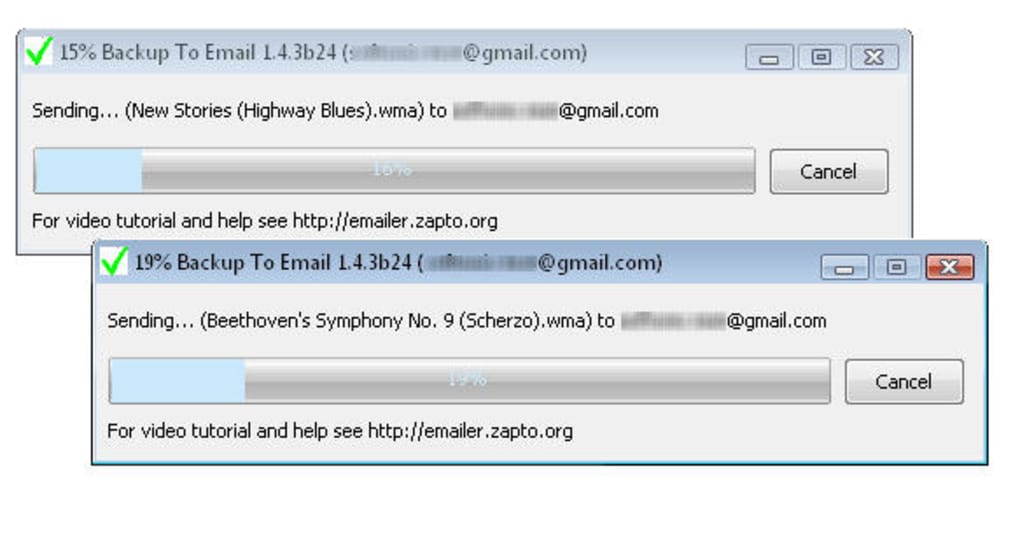
Click “Send,” and the program immediately creates an email with the selected file as an attachment. If the file exceeds 10 MB, the software splits it into multiple parts, each sent as a separate attachment within the same email thread. You will see a progress bar indicating the upload status.
The original file remains untouched on your hard drive; the backup lives solely in your mailbox.
Restoring Files
To retrieve a backed‑up file, open your email client (web or desktop) and locate the email with the appropriate subject line. If the file was split, download all parts to the same folder, then launch Backup to Email’s “Merge Files” utility. Select the first part, and the tool will automatically concatenate the remaining segments, recreating the original document. The merged file can be saved to any location you choose. For single‑part backups, simply download the attachment and you’re ready to go.
The entire workflow is designed for speed and simplicity: from installation to daily use, you spend seconds rather than minutes protecting important data. Because the software relies on your existing email account, there are no extra credentials to remember, and you can take advantage of any built‑in email storage limits (often several gigabytes) without incurring additional costs.
Compatibility, Pros & Cons, and Frequently Asked Questions
System Compatibility
Backup to Email is built exclusively for Windows 7, 8, 8.1, 10, and 11 (both 32‑bit and 64‑bit). The installer uses standard Win32 APIs, ensuring smooth operation on legacy systems as well as the latest Windows releases. While the core functionality does not require .NET Framework, the optional auto‑update module leverages .NET 4.6+, which is pre‑installed on most modern Windows machines. No separate mobile or macOS version exists at this time, but the email‑based backup can be accessed from any device that supports standard email protocols (IMAP/SMTP) – meaning you can retrieve your files from Android, iOS, macOS, or Linux without needing the native application.
Pros
- Completely free – no subscription or hidden fees.
- Uses existing email security (password, 2FA, TLS).
- One‑click backup directly from Windows Explorer.
- Automatic splitting for files larger than typical email limits.
- Built‑in merging tool simplifies restoration.
- Lightweight installer (under 2 MB) and minimal system impact.
- Works with any email provider that supports SMTP/IMAP.
- No need for third‑party cloud accounts or external drives.
- Easy to set up – only email credentials required.
- Secure storage in your own mailbox, not on a remote server you don’t control.
Cons
- Limited to Windows; no native macOS or Linux client.
- Relies on email attachment size limits (10 MB split threshold).
- Backup storage capacity depends on your email account’s quota.
- No versioning – each backup creates a new email thread.
- Not ideal for extremely large files (multi‑GB) that would exceed mailbox limits.
FAQ
Can I use Backup to Email with corporate email servers?
Yes. The configuration dialog allows you to manually enter SMTP and IMAP/POP3 server addresses, ports, and encryption settings, so you can connect to on‑premises Exchange, Office 365, or any other mail server that supports standard protocols.
Is my data encrypted when it’s stored in my mailbox?
Backup to Email sends attachments over an encrypted TLS/SSL connection. Once the email reaches your inbox, it is protected by whatever security measures your email provider implements (e.g., at‑rest encryption, two‑factor authentication).
What happens if I exceed my email account’s storage quota?
The program will alert you when the mailbox is near its limit and prevent further backups until you free up space or upgrade your storage plan. It’s a good practice to regularly delete old backup emails you no longer need.
Can I schedule automatic backups?
The current free version does not include a built‑in scheduler. However, you can combine Backup to Email with Windows Task Scheduler by creating a simple batch script that calls the application’s command‑line interface.
Is there a limit to how many files I can back up?
No technical limit within the software itself, but each backup creates a new email. Practical limits are imposed by your mailbox’s storage quota and any provider‑specific rate limits on sending messages.
By weighing these advantages and drawbacks, you can decide whether Backup to Email fits your personal or professional backup strategy. For many users, the convenience of using an existing email account outweighs the modest constraints around attachment size and storage quotas.
Conclusion & Call to Action
Backup to Email delivers a clever, no‑cost approach to protecting your most valuable documents. By turning your inbox into a secure, instantly reachable archive, it eliminates the need for extra hardware, subscription‑based cloud services, or complicated synchronization tools. The one‑click Explorer integration, automatic file splitting, and built‑in merging utility together create a frictionless workflow that encourages regular backups—a habit that can save you from data loss disasters.
If you’re looking for a straightforward, secure, and free method to keep copies of important files within arm’s reach, download Backup to Email today. The installation process takes under a minute, and once configured, you’ll have a reliable safety net for any document you deem critical. Remember to monitor your mailbox quota and consider periodic clean‑ups to maintain optimal performance.
Click here to download the latest version of Backup to Email and start safeguarding your files with the power of your own email account.







